
How to Trigger Custom Events to Google Analytics in Carrd

Introduction
Google Analytics is a powerful tool that allows you to track and analyze user interactions on your website. In this post, we’ll walk you through the process of setting up and triggering custom events in Google Analytics 4 on a website built with Carrd. For this example, we'll show you how to fire a demo_button event with multiple parameters each time a specific button is clicked.
Why Custom Events?
Custom events allow you to track specific user actions that are important to your website's goals, such as button clicks, form submissions, or video plays. By setting up custom events, you gain deeper insights into how users interact with your site, enabling you to make data-driven decisions to improve user experience and achieve your business objectives.
Step-by-Step Guide
1. Setting Up Google Analytics
First, ensure you have a Google Analytics 4 account set up for your website. If you don’t already have one, you can create it here.
Go to your Google Analytics account and navigate to the Admin section.
Under the property for your website, find and copy your Tracking ID (usually in the format G-XXXXXX).
2. Adding Google Analytics to Your Carrd Site
Open your Carrd dashboard an locate your site.
Go to the "Settings" section.
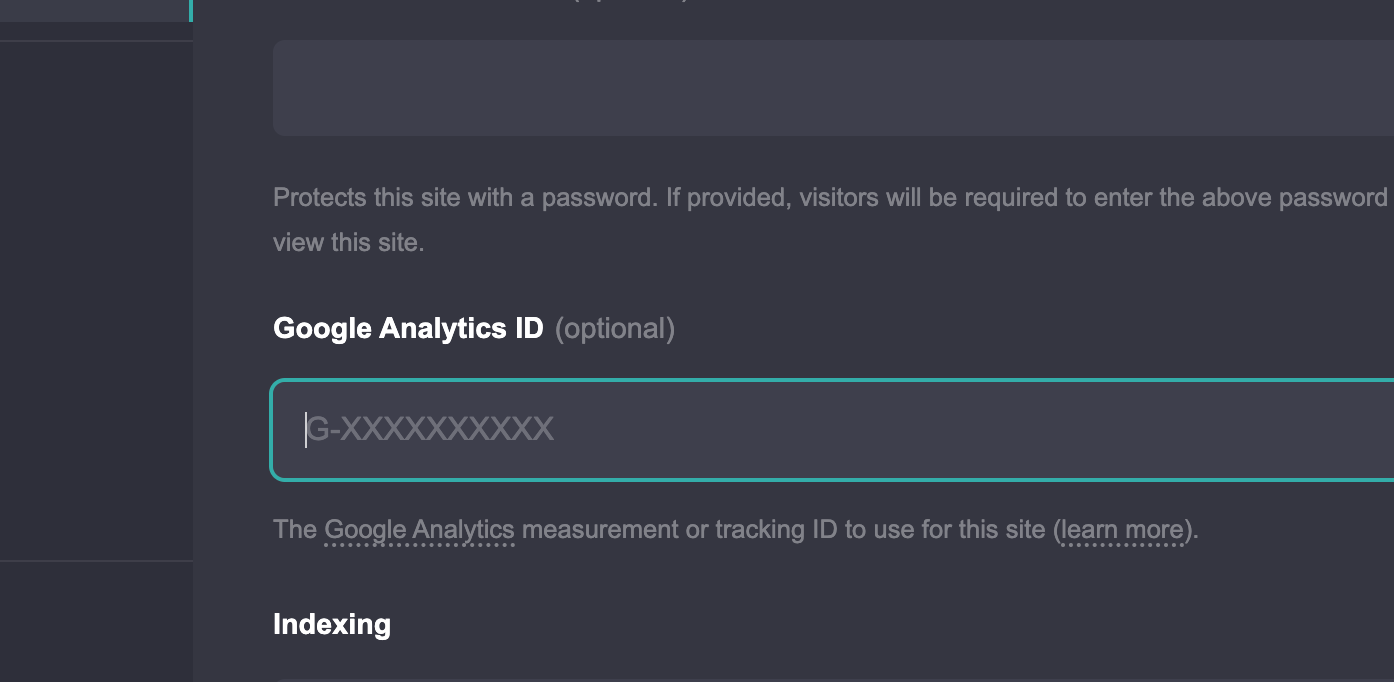
Find Google Analytics ID field and paste your Google Analytics Tracking ID.
Save.
3. Adding Custom Event Code
Open your site in the editor
Find the element that would trigger a custom event.
Go to settings and then events
Find the onClick setting
Paste your custom event code
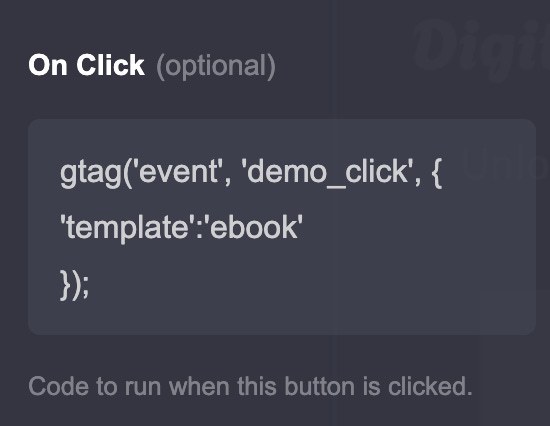
In this example we are sending the custom event “demo_click” with one custom parameter named “template” with the value “ebook”.gtag('event', <custom_event_name>, {
<custom_parameter>:<value>
});
Testing Your Setup
After publishing your site, visit the page with the button and click it. You can use Google Analytics 4 Real-Time reports to verify that your custom event is being triggered correctly.
Go to your Google Analytics account.
Navigate to the Real-Time section.
Click on "Events" and you should see your
demo_buttonevent being recorded each time you click the button.
Conclusion
By following these steps, you can easily track specific user interactions on your Carrd site using Google Analytics. Custom events provide valuable insights into user behavior, allowing you to optimize your website and achieve your marketing goals more effectively.
Stay tuned for more tips and tutorials on using Carrd and other no-code tools to enhance your web projects. Happy tracking!
Wants some free templates?